Arkivdokumentationen finns endast på engelska.
Introduction
The Accordion system have a great list of built-in features and because of the hardware module slots, a lot of situations can be addressed. To add to this module type of flexibilty, there is also the option to develop and use the Accordion Software Modules.
Software modules are external implementations that allow peripheral functions to integrate into the Accordion framework.

Example
Let’s go through a simple example:
You are using your Accordion system happily, however, someone in your team got the idea they want a physical indicator lamp connected to your process. They already decided on a model and now you need to make it work. This is a simple example when you can make use of Software Modules.
You gather the datasheet and information around your indicator lamp and then reach out to the Accordion team at E#, explaining your need and bringing the technical info.
The lamp in your case has a USB-connector, it communicates via the UART bus protocol, it also has a defined system for sending commands for different sounds and colors.
- Accordion Team says, sure! We can make it work, we can write a Software Module, enabling the Accordion system to tell the indicator lamp what to do. The Accordion systems you have, gets an update with the new Software Module. Good news! More details on usage below:
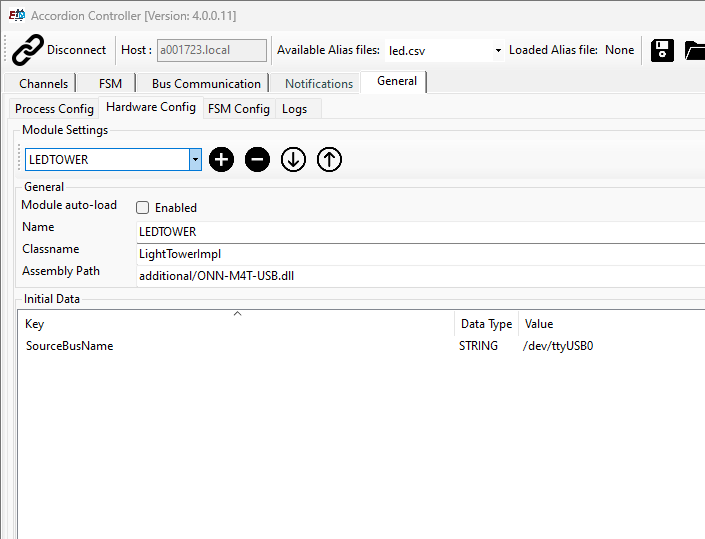
Settings
The tab “Hardware Config” gives some options:
- Choosing the Module to edit in the dropdown
- Enable/Disable auto-load of the module
- Giving the module a suitable name
- Connecting to it’s “inner” class in the software code (E# use)
- Point to the correct driver and location in the system (E# use)
Initial Data
This data can be used to get the setting data or some static data into the software module. Le’ts say you want to have a specific setting for different AGENTs, here we can for example enter a serial, license number or like in the picture, the USB port which the system uses for the Light tower.
Channels
Engine Channels
The channels controlling the software module engine itself can be used in different scenarios.
| Channel name | Usage | Comment |
|---|---|---|
| Engine.AvailableModules | Read this channel to get a list, comma separated, of the available modules (corresponds to dropdownlist in settings). | |
| Engine.LoadedModules | Read this channel to see the current loaded modules. Returns a list if multiple loaded. | Can be used to check if you need to re-load a module at a certain stage or step in a process. |
| Engine.LoadModule | Write the “Name” of the module to load it. | Ability to load a module on-demand when needed in a process or FSM state. |
| Engine.UnloadModule | Write the “Name” of the module you want to unload. |

Module-specific Channels
Yes, we now got the ability to control our module. For the example above, the light, it can look something like this:

Write to the BUZZER, COLOR or FLASH registers to control the module in this case.